Troubleshooting Ankota Caregiver App
Ankota Caregiver App Troubleshooting Steps
Accessibility
If you need to make the font size bigger,
- Go to your phone's settings
- Click Display
- Click Font Size
- Increase Font Size

Step-by-Step - General Log-in/Use Issues
-
Do you have the correct app?
- Be sure you have downloaded the Ankota caregiver app and not a different Ankota app.
-
Is your username correct?
- Check with an admin to be sure you have the correct username.
-
Is your password correct?
- Try resetting your password.
- Press the forgot password button and change your password.
- Try resetting your password.
-
Ankota.net/employee
- If you believe your username and password are correct, go to this web version of the app and attempt your login.
- If your login attempt fails, double check your username and change your password.
- If you believe your username and password are correct, go to this web version of the app and attempt your login.
-
Is there an update?
- In the app store check to be sure there are no updates waiting.
-
Are you online?
- Be sure that your phone has service and is online.
- Note that you can use the app while offline but will need to login while online for your visits for the day to load.
-
Is your GPS enabled?
- Check that your GPS is enabled on your phone.
- Check that you have not pressed do not allow when asked if Ankota can access your location.
-
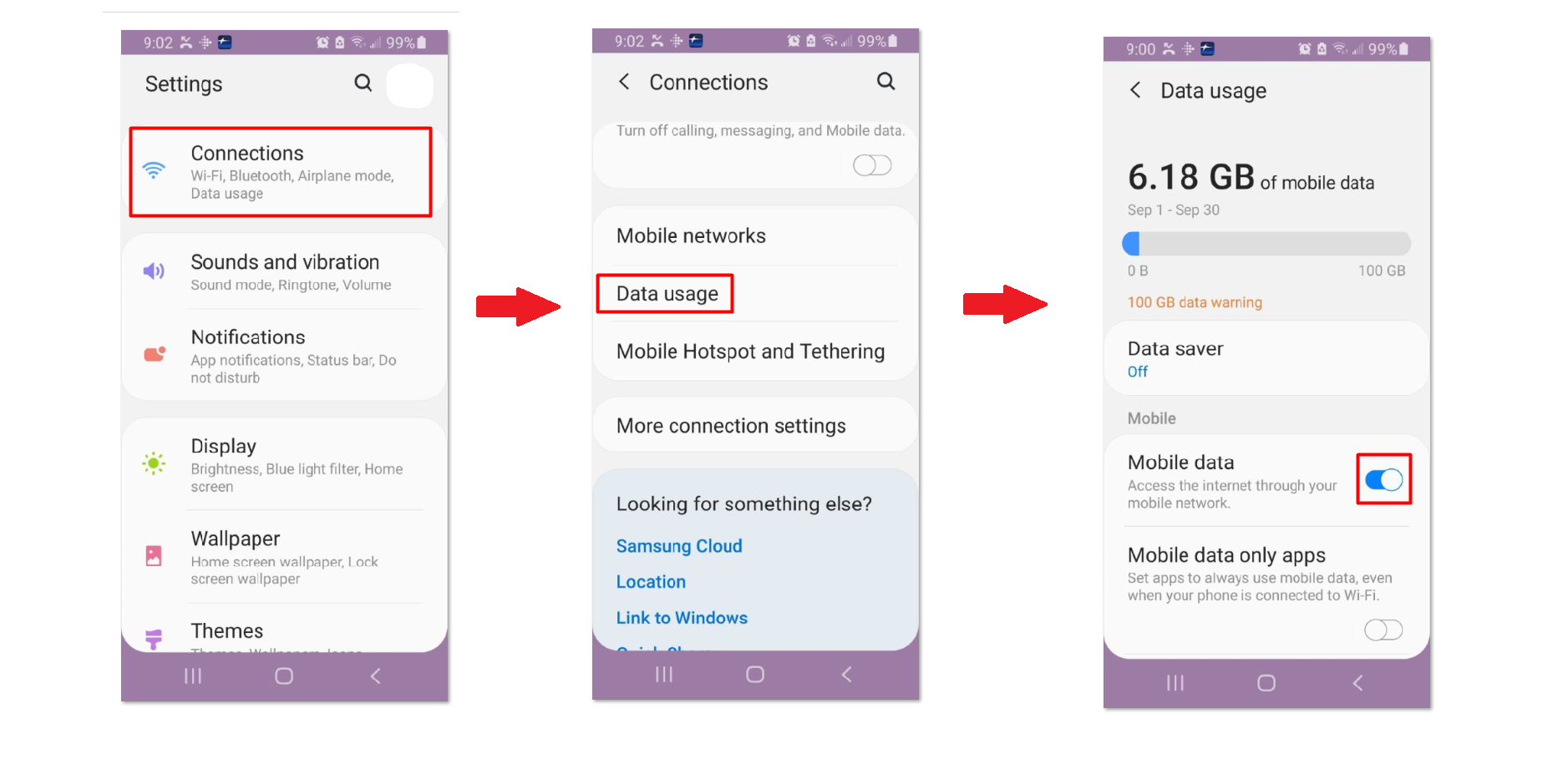
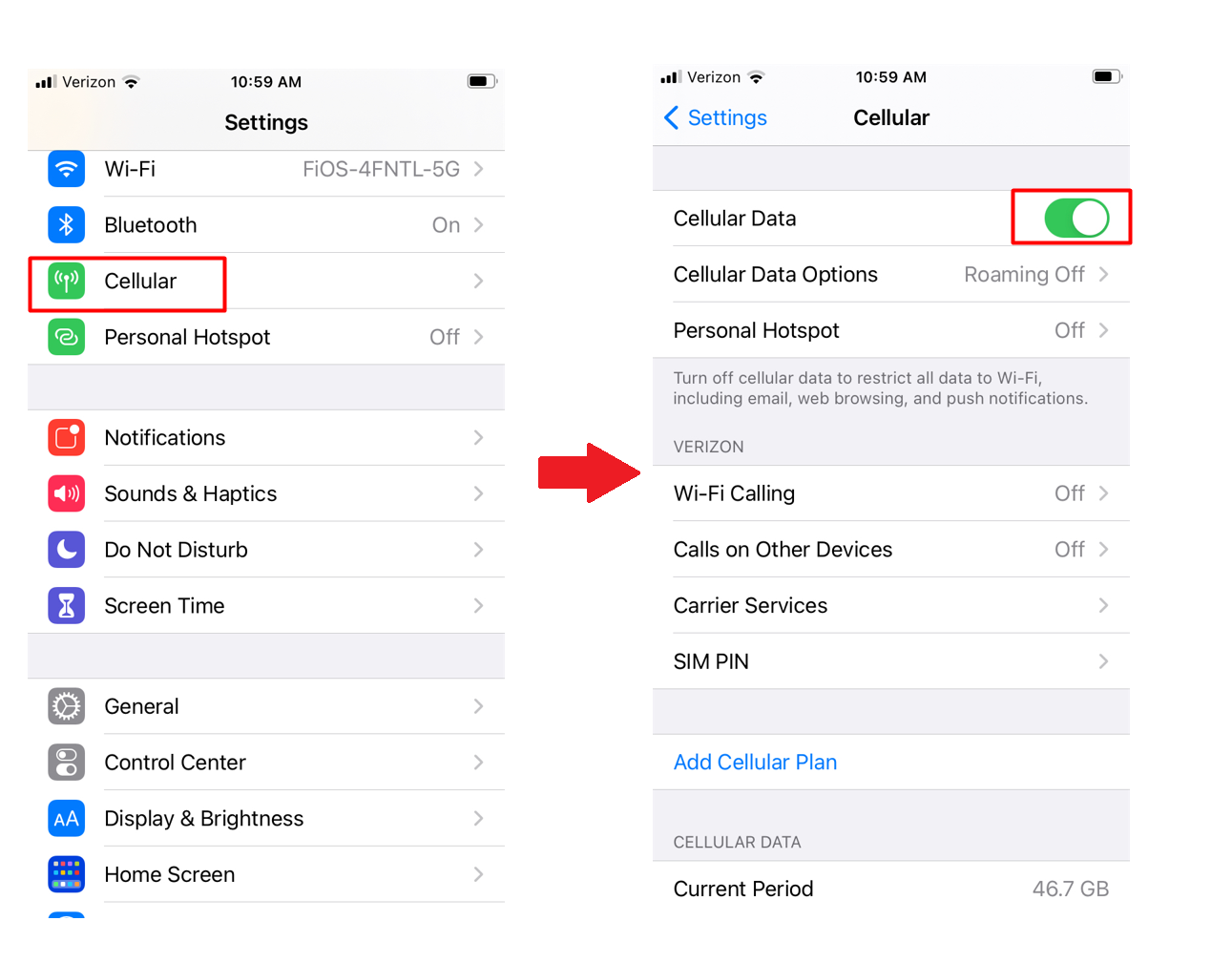
Is your signal poor?
- Consider turning off your phone's wi-fi and data. This will trigger the app to work in offline mode. Log in and out as usual to your app, then turn your data back on after the visit is complete. When you are in an area with good signal, the data will send to Ankota.