Staff Check-in/out
Overview
Some organizations require staff check-ins. This allows caregivers to clock in and out of the facility via the kiosk rather than using a separate mobile app. See below for the caregiver guide to staff check-in and check-out.
NOTE: Your organization will direct you as to whether you are using the Scheduled staff check-in process or the Unscheduled staff check-in process. Read only the appropriate section.
This article includes:
Log-in
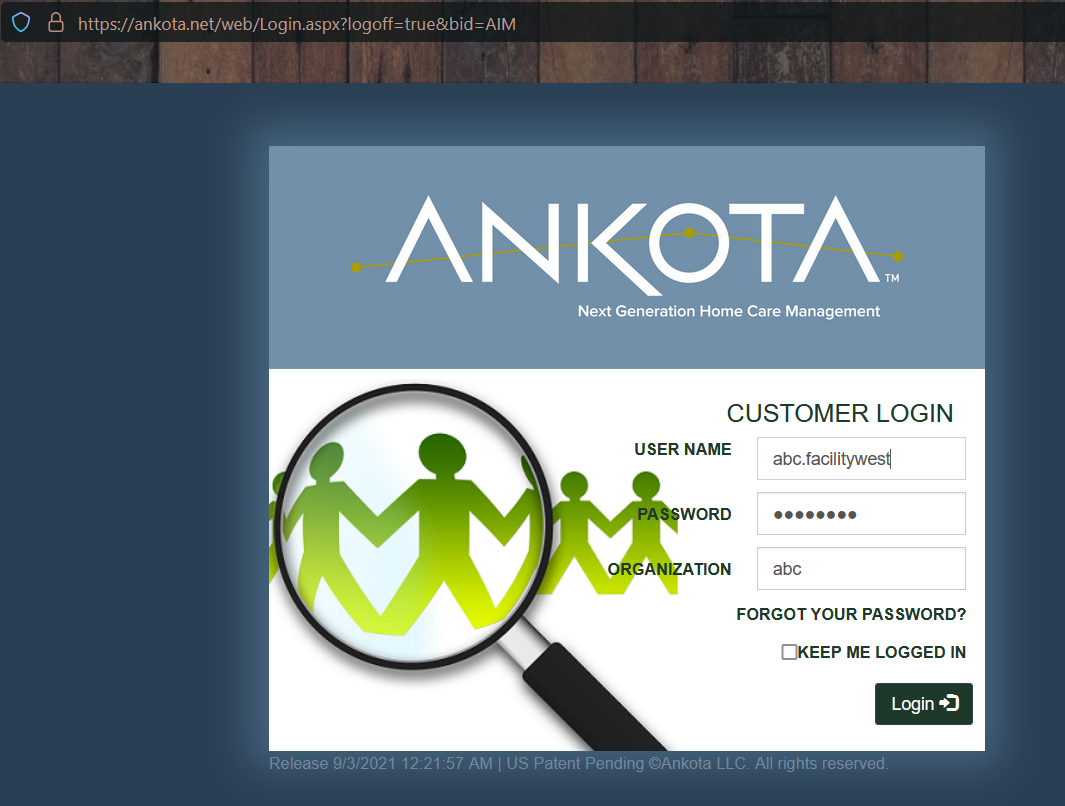
To log in and access the client kiosk,
- Go to ankota.net
- Enter your user ID, password, and organization name (as assigned by your administrator)
Unscheduled Staff Check-in
To access unscheduled client check-in,
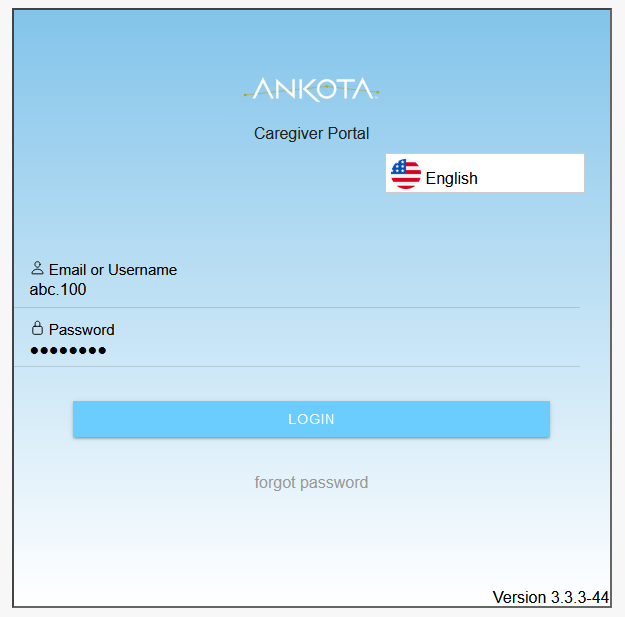
- Log in using your individual log-in (not the facility manager log-in), such as abc.100
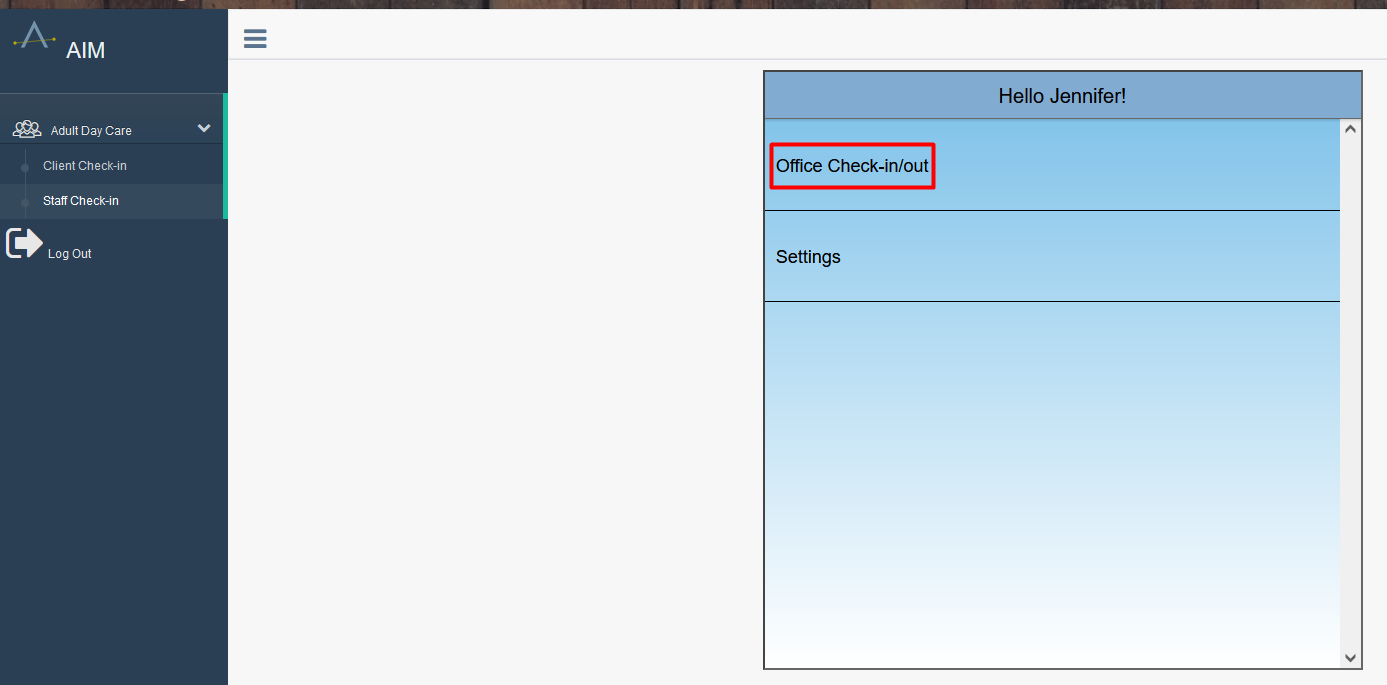
- Click Adult Day Care
- Click Staff Check-in
- Click Office Check-in/out
- Your organization's check-in page name may vary
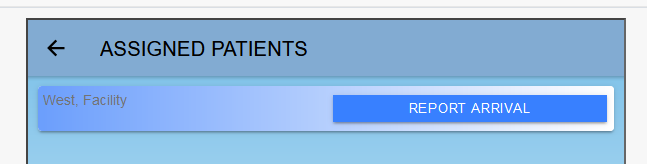
- Click the name of the facility you are clocking into
- Click Report Arrival
- Click Accept Time
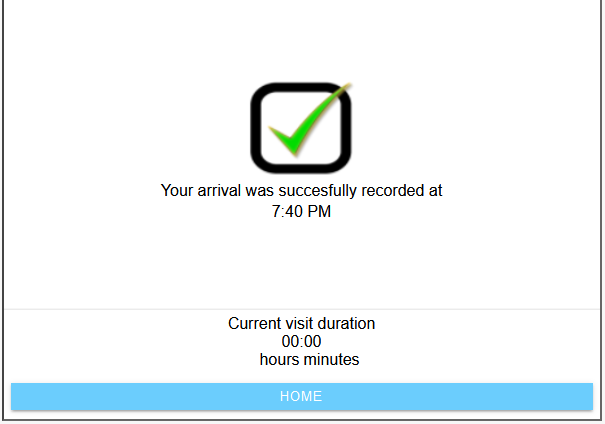
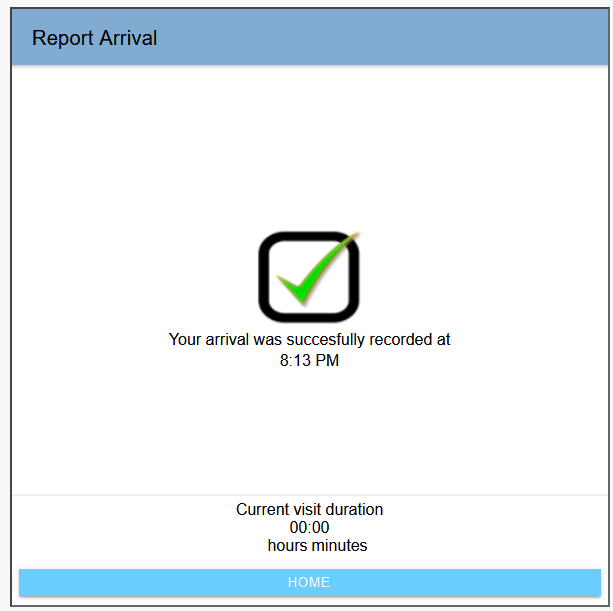
- When you see the confirming green check mark, the check-in is good; click Home
 Click Adult Day Care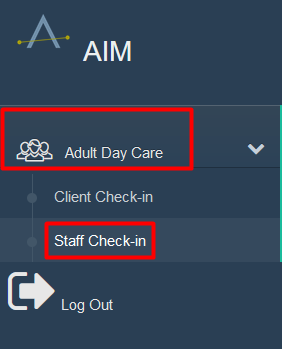
Scheduled Staff Check-in
To access scheduled client check-in,
- Log in using your individual log-in (not the facility manager log-in), such as abc.100
- Click Adult Day Care
- Click Staff Check-in
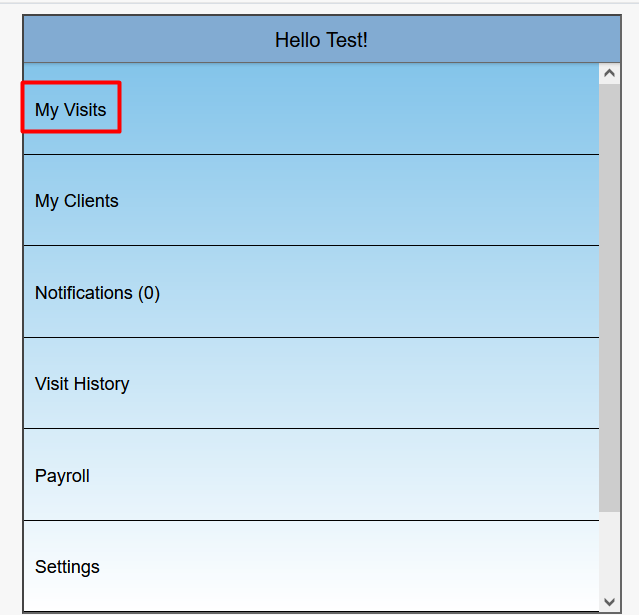
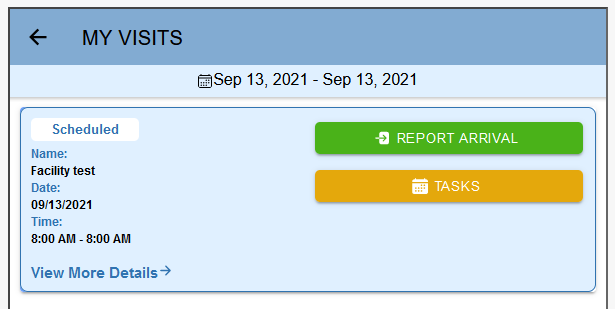
- Click Visits
- Your organization's check-in page name may vary
- Click the name of the facility you are clocking into
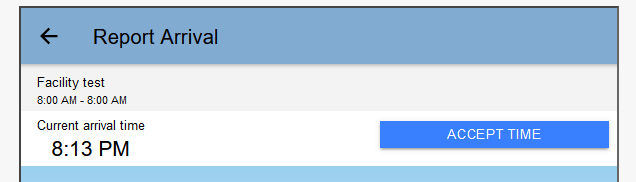
- Click Report Arrival
- Click Accept Time
- When you see the confirming green check mark, the check-in is good; click Home
Staff Check-out
Staff check-out is performed in the same location as staff check-in.
To access client check-out,
- Log in as before
- Click the Office Check-in or Visits page as appropriate
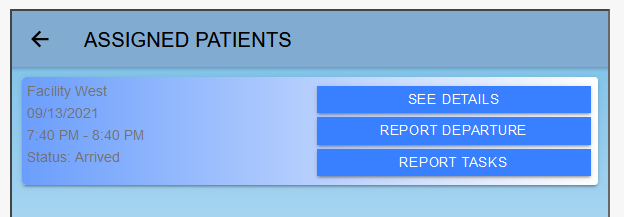
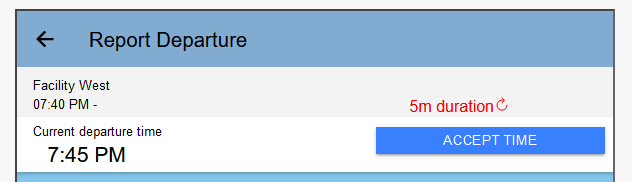
- Click Report Departure
- Click Accept Time
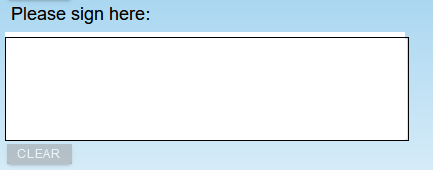
- Sign if required in your environment
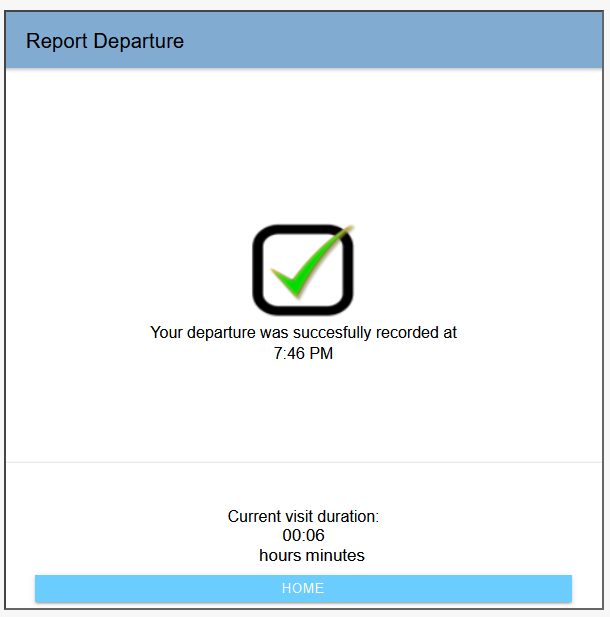
- When you see the confirming green check mark, the check-out is good; click Home