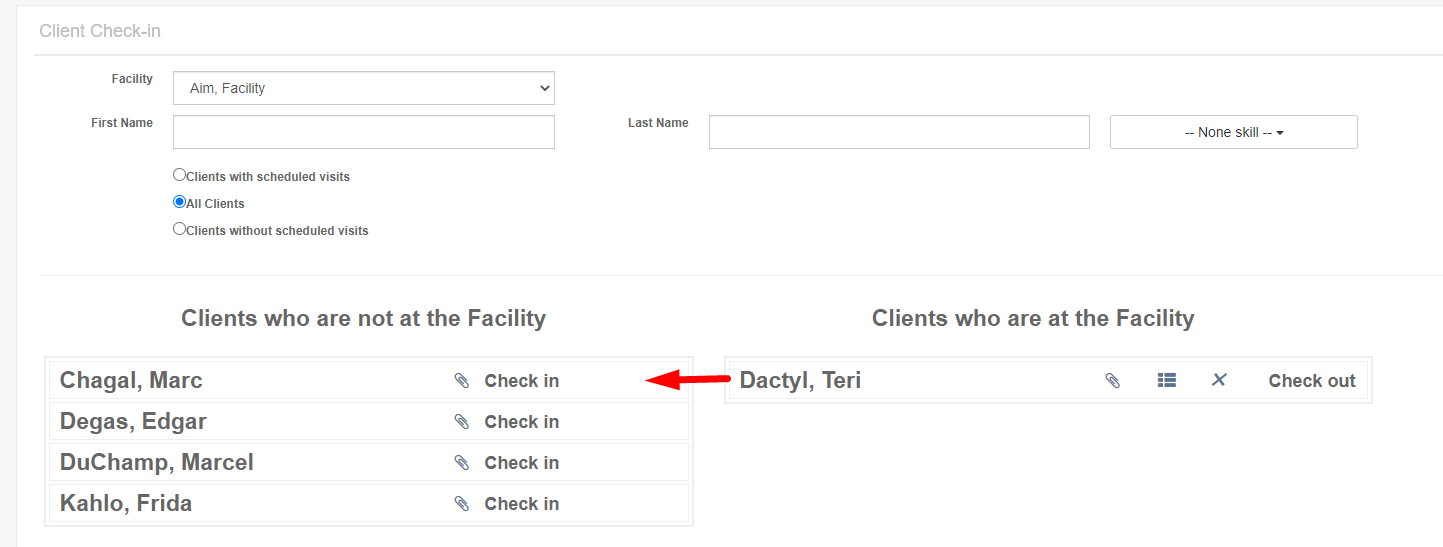
Client Check-in/out
Overview
Client check-in is managed via the Adult Day Health Care module. See below for the caregiver walkthrough of the Client Check-in process.
This article includes:
Log-in
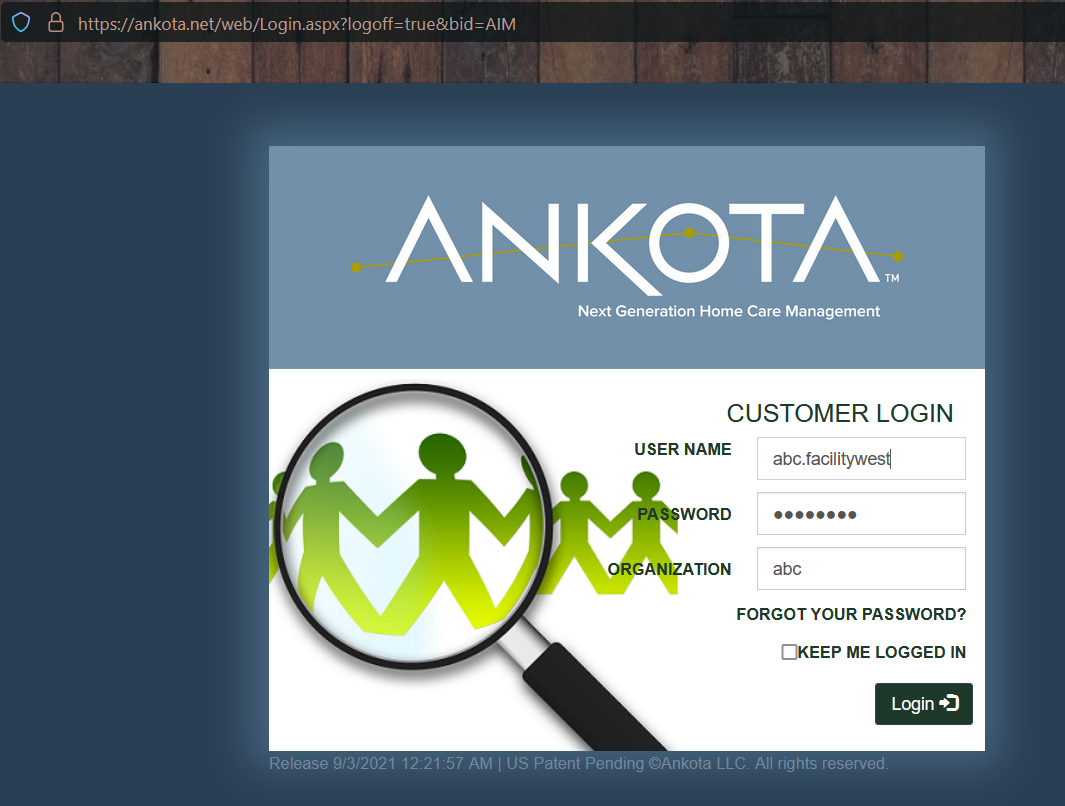
To log in and access the client kiosk,
- Go to ankota.net
- Enter your user ID, password, and organization name (as assigned by your administrator)
Client Check-in
To access the client check-in board,
- Log in
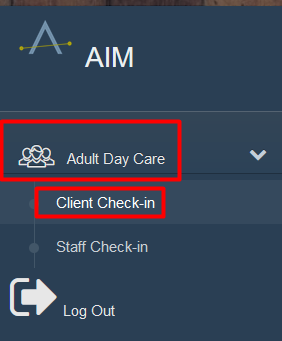
- Click Adult Day Care
- Click Client Check-in
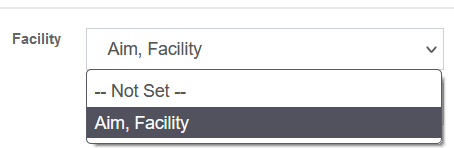
- Next, select the Facility in the drop-down list
- This will bring you to the client check-in
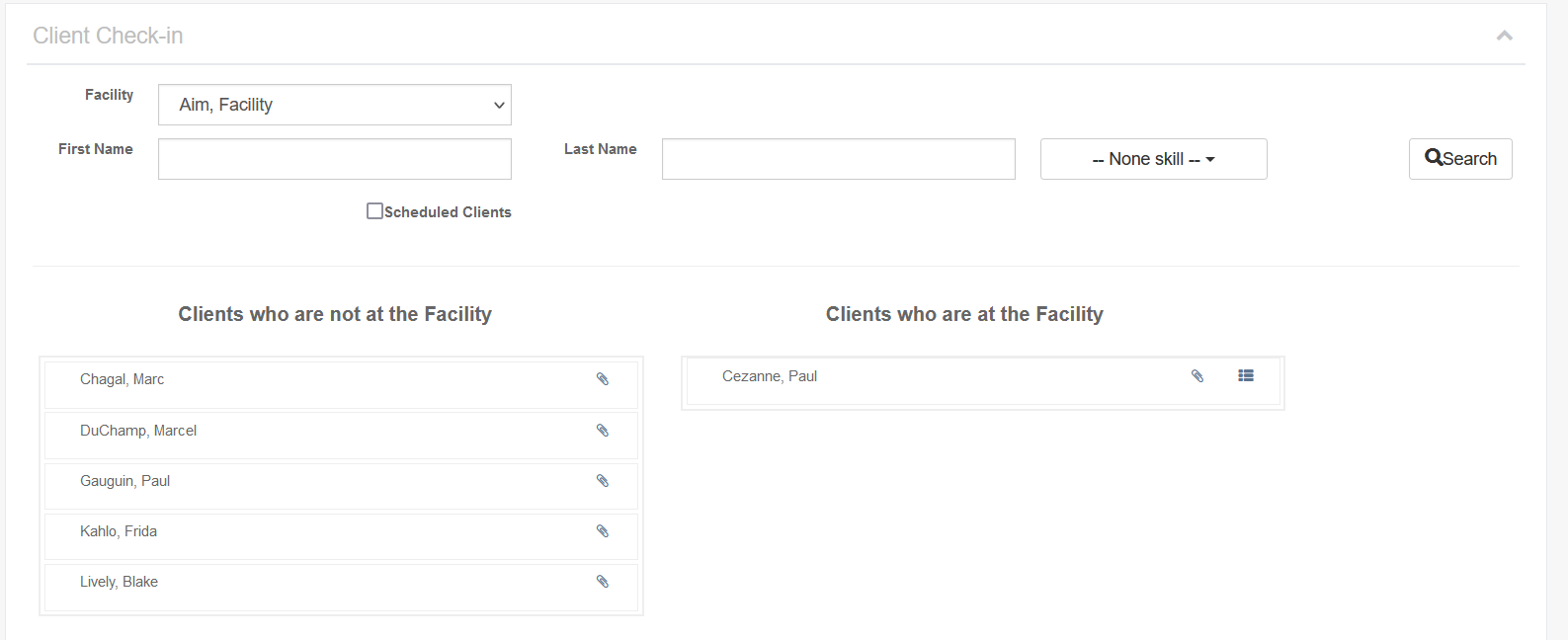
At this location, you have two choices.
- If your organization does NOT pre-schedule, drag and drop the clients from the left column to the right column to clock in OR click the Check In button
- If your organization pre-schedules,
- check the box for Scheduled Clients
- click Search
- Drag and drop the scheduled client from the left column to the right column to check in OR click the Check in button
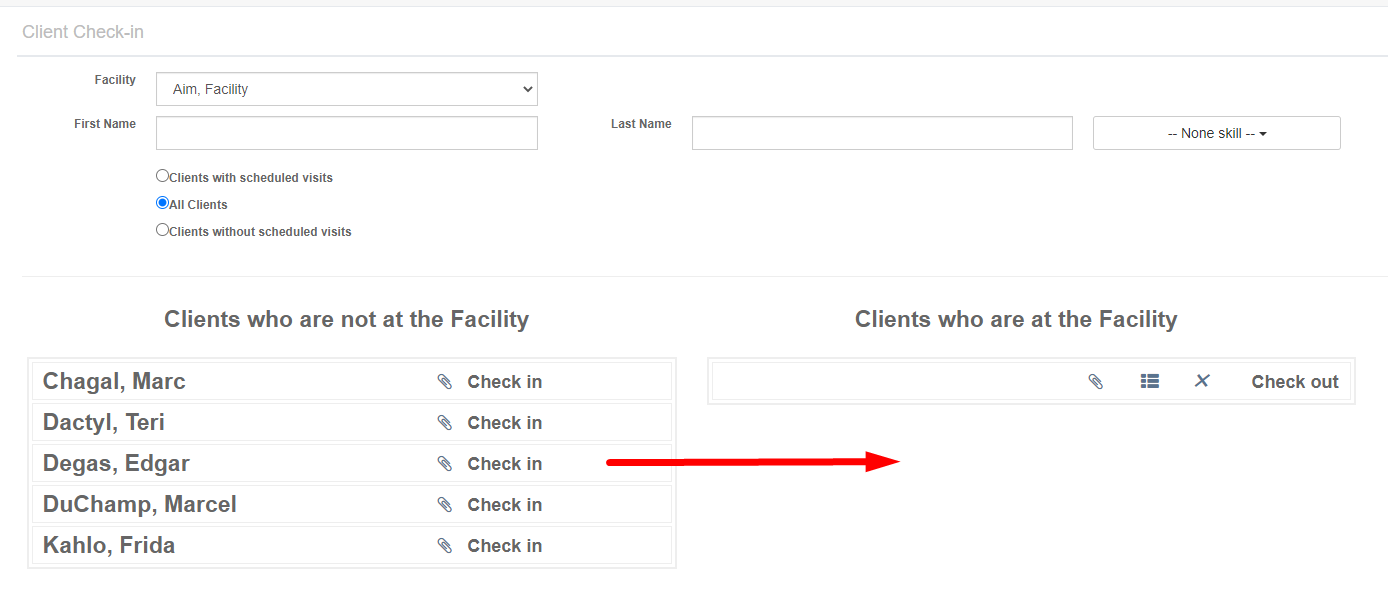
Please note moving the client left to right will create a visit that is visible by administrators on the schedule board. If you accidentally check in a client, click the X next to the client's name to cancel the visit.

Client Signature
If your organization requires client signatures at check-in and check-out, a signature field will pop up as you check the client in and out. Sign and save as needed.
Client Authorization
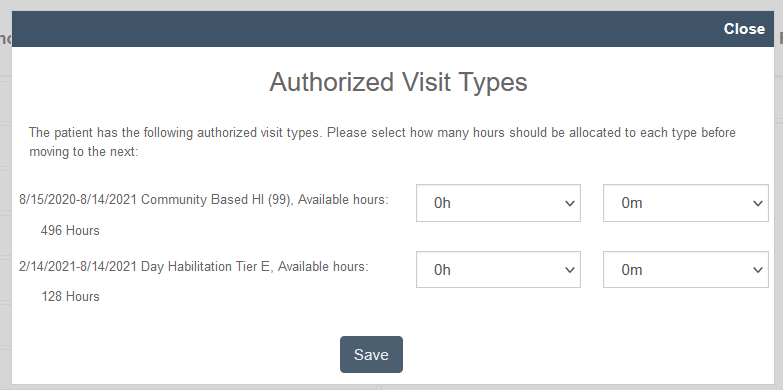
If your organization requires client authorization management at check-in, enter the hours and minutes associated with the authorization upon checking the client in. (This field will not appear if your organization does not use authorizations.)
Client Check-out
Client check-out is performed in the same location as client check-in. Select the client from the right-hand column and move them to the left.